Add your card to Apple Pay and pay with your phone.
Issue a card in seconds and add it to Apple Pay. Then hold your iPhone or Apple Watch to the terminal, and pay in shops, in apps and on the web.
Issue a card
Where Apple Pay works
In shops
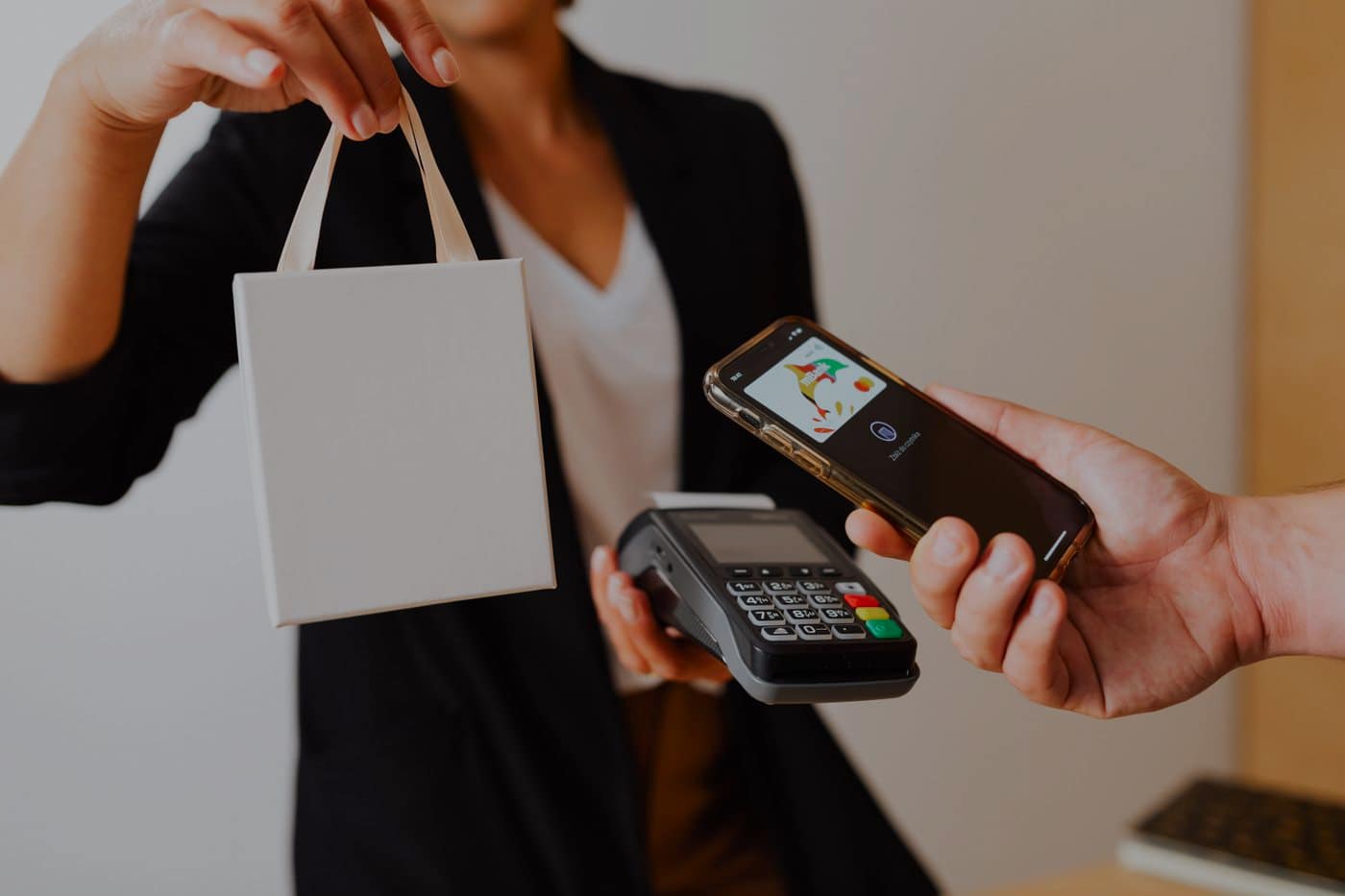
Hold your iPhone or Watch near any contactless terminal that takes Visa.
In apps
Choose Apple Pay at checkout instead of typing a card number.
On the web
Pay in Safari on iPhone, iPad and Mac without filling in a card form.
Adding the card
Open Wallet
On the iPhone you want to pay with.
Tap the plus
Top corner of the screen.
Choose “Debit or Credit Card”
Tap “Enter Card Details Manually”
Type the card in
The number, expiry date and CVV, from the card in your Rynex dashboard.
Add the name and billing address
Only if it asks. Use the ones the card was created with.
Verify, if asked
Apple may send a code by text message or email. Enter it.
Tap “Done”
The card is in your Wallet and ready to pay with.
What you get
The number stays hidden
Apple Pay hands the shop a device number, not the number on your card.
Face ID or Touch ID
Every payment is confirmed on your own device before it goes anywhere.
The same limit
The card still spends only its balance, whether you hold it to a terminal or type it in.
Your first card is a few minutes away.
Sign up, send USDT, and spend it anywhere Visa is accepted.